Audience: Transportation admins and staff
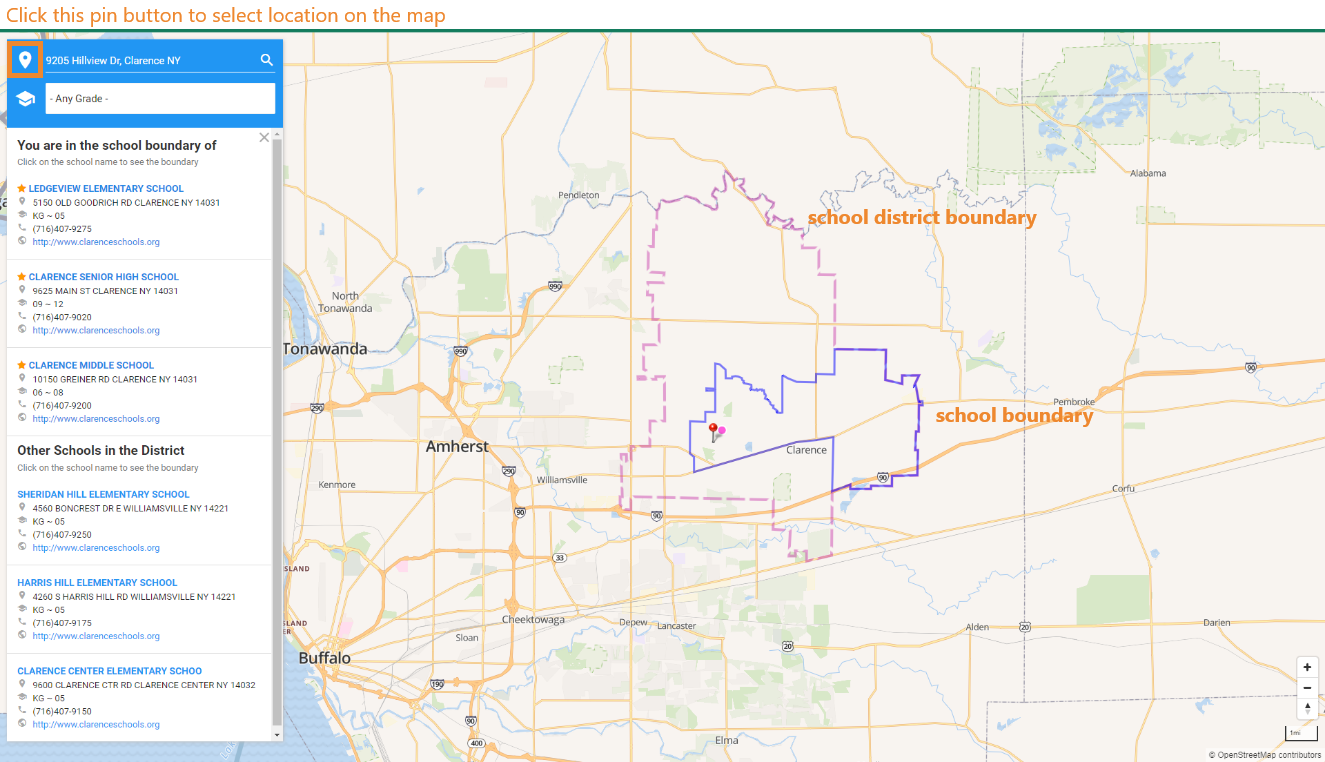
Purpose: The website FindMySchool (https://www.findmyschool.us/) allows parents to search for nearby government schools. On this website, parents can check what school district they are in by providing addresses. School information is also provided like address, grade range, and contact phones.
What FindMySchool Is (and Is Not)
- Is: A third‑party address lookup tool integrated with EZRouting
- Is Not: A place to edit school records, boundaries, or walkzones
FindMySchool reflects data configured in EZRouting but is managed externally.
Steps
- Navigate to FindMySchool using your district’s public link.
- Enter a full street address.
- Review the returned school assignment and eligibility results.
- If results are incorrect, verify school boundaries and walkzones in EZRouting.
Tips
- Use FindMySchool to answer family eligibility questions quickly.
- Changes to boundaries or walkzones may take time to reflect externally.
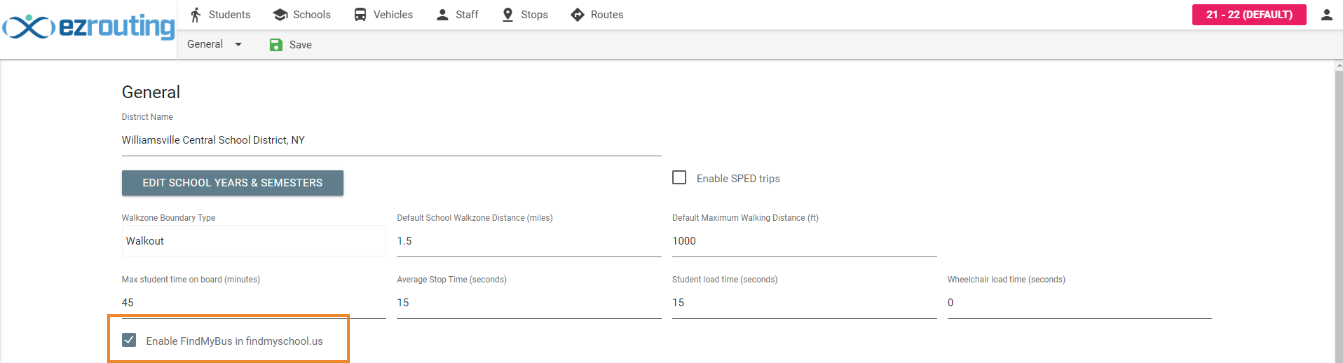
- For school districts using EZRouting, parents can check available routes from this website as well, as long as the admin enabled the “find my bus” function in findmyschool.us.
- Admins can enable the function on the setting page by checking the box Enable FindMyBus in findmyschool.us”. Then parents will be allowed to use the tool on the website https://www.findmyschool.us/districtname. For example, if your EZRouting URL is https://www.ezrouting.com/beta, then the FindMyBus website for parents will be https://www.findmyschool.us/beta
Updated